 Claryoo
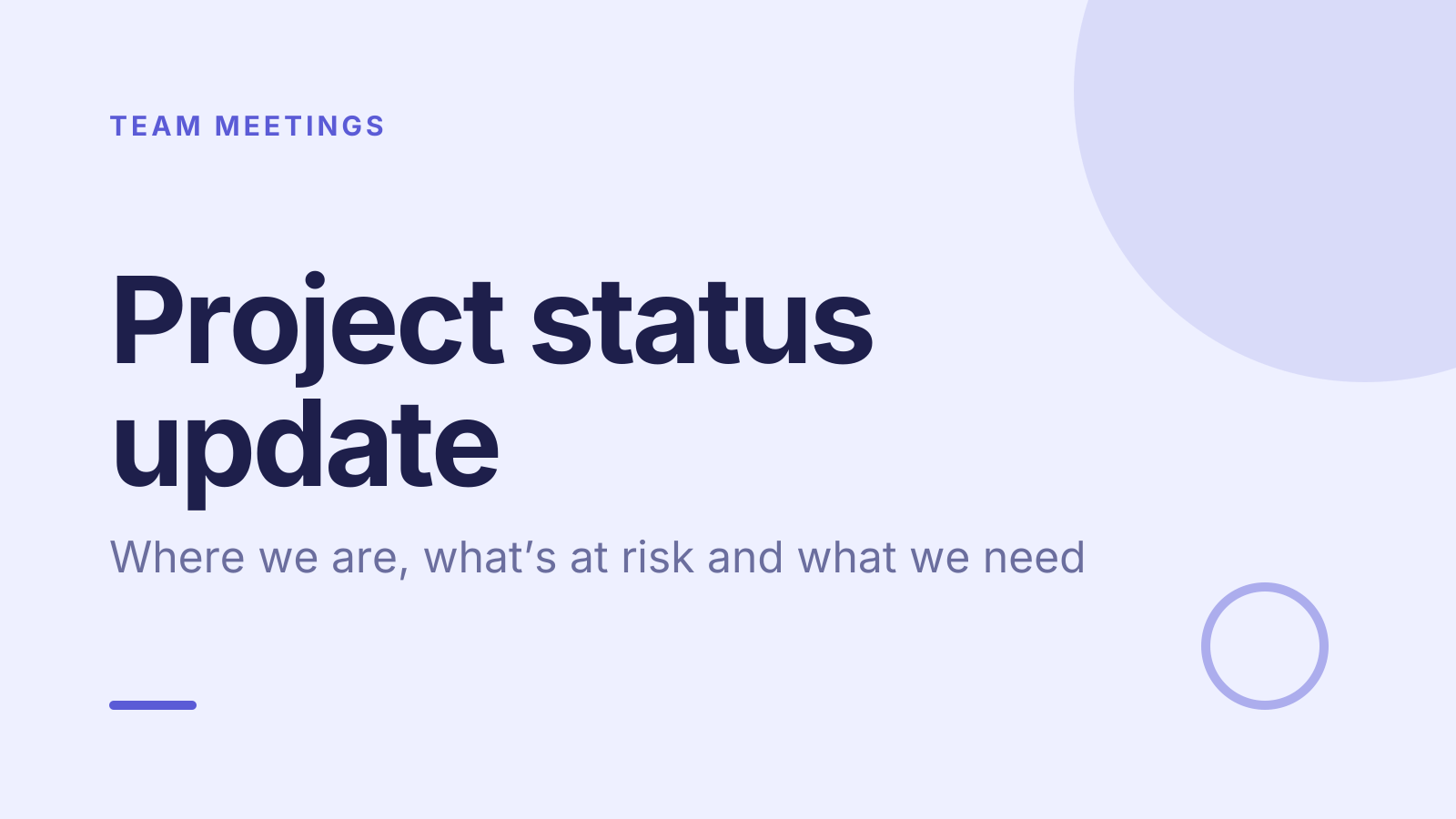
Project status update PPT that ends with decisions, not just updates
A free project status update PowerPoint template: 13 slides with speaker notes, 3 polls. Edit it in PowerPoint or Google Slides, or run it live on Zoom, Meet, Teams or in the room.
Free, no sign-up. 13 slides, about 35 minutes, speaker notes on every slide. Opens in PowerPoint, Google Slides and Keynote.
What’s inside
- 1 · Welcome
 2 · Today
- 3 · PollPollAnonymous
How confident are you we’ll hit the next milestone?
- AVery confident
- BFairly confident
- CNot very
- DNot at all
 4 · Section
- 5 · Show status at a glance
Show status at a glance
- 1Use red, amber, greenGreen: on track. Amber: at risk but recoverable with a plan. Red: off track and needs a decision or help.
- 2Lead with the headlineOpen with one sentence: overall status, the biggest change since last time, and what you need from this group.
- 3Compare plan with forecastShow each milestone’s planned and forecast date side by side. A slipping forecast is the early warning.
- 6 · Keep risks and issues apart
Keep risks and issues apart
- 1A risk might happenWrite it as cause, event and effect. Give it a likelihood, an impact and an owner who watches it.
- 2An issue is already hereIssues need action now. Give each one an owner, a next step and a date, and track it until it’s closed.
- 3Be honest about amberCalling a project green until it turns red erodes trust. Flag amber early, with your recovery plan beside it.
- 7 · Ask for the decisions you need
Ask for the decisions you need
- 1Make the ask specificSay “We need approval to add one tester for six weeks” rather than “We’re a bit short on people”.
- 2Bring options, not just problemsFor each blocker, give two or three options with their cost and effect on the date, and say which you recommend.
- 3Close with owners and datesRead back each decision and action with one owner and a due date, then send them in writing the same day.
 8 · Discussion
- 9 · PollPollAnonymous
Which risk worries you most right now?
- AScope creep
- BNot enough people
- CWaiting on other teams
- DSlow decisions
 10 · Key takeaways
- 11 · PollPoll
Are the next steps clear to you?
- AYes, clear
- BMostly
- CNo, not yet
 12 · Next steps
 13 · Close
Show of hands, or everyone’s answer
The first poll works with hands up. Here’s the same question in a sample room of 12, answered live. Tap an answer to join in.
Show of hands
How confident are you we’ll hit the next milestone?
About 3 hands go up, the same ones as always. You hear the loudest people, not the room.
Live in Claryoo · 0 of 12 answered · anonymous
LiveHow confident are you we’ll hit the next milestone?
Four people doubt a milestone the report still calls green. Run it live, free
What the session covers
1.Show status at a glance
Use red, amber, green
Green: on track. Amber: at risk but recoverable with a plan. Red: off track and needs a decision or help.
Lead with the headline
Open with one sentence: overall status, the biggest change since last time, and what you need from this group.
Compare plan with forecast
Show each milestone’s planned and forecast date side by side. A slipping forecast is the early warning.
2.Keep risks and issues apart
A risk might happen
Write it as cause, event and effect. Give it a likelihood, an impact and an owner who watches it.
An issue is already here
Issues need action now. Give each one an owner, a next step and a date, and track it until it’s closed.
Be honest about amber
Calling a project green until it turns red erodes trust. Flag amber early, with your recovery plan beside it.
3.Ask for the decisions you need
Make the ask specific
Say “We need approval to add one tester for six weeks” rather than “We’re a bit short on people”.
Bring options, not just problems
For each blocker, give two or three options with their cost and effect on the date, and say which you recommend.
Close with owners and dates
Read back each decision and action with one owner and a due date, then send them in writing the same day.
How to run it, slide by slide
About 35 minutes in all. These notes come with the PowerPoint as speaker notes, so you see them while you present.
- 1Welcome1 min
“Thanks for coming. In the next half hour I want us to leave with decisions, not just updates.”
Start on time, even if one or two people are still joining.
- 2Today1 min
“We’ll look at status, then risks and issues, then the decisions we need from this group.”
Name the decisions you need up front so people listen with them in mind.
- 3Poll3 min
“Before I show the status, tell me how confident you are about the next milestone.”
If doubt is higher than your report suggests, say so out loud and ask what people are seeing that the report misses.
- 4Section1 min
“Here’s where the project stands today.”
Give the one-line headline before any detail.
- 5Show status at a glance5 min
“Here’s our status, and the one thing that changed since last time.”
Point at the forecast dates that moved, and say why, before anyone has to ask.
- 6Keep risks and issues apart5 min
“These are the risks we’re watching and the issues we’re already working on.”
Cover the top three of each only. Point to the full log for the rest.
- 7Ask for the decisions you need5 min
“Here’s what we need from you today, the options, and what I recommend.”
Ask for the decision directly. If it can’t be made today, agree who decides and by when.
- 8Discussion5 min
“What could stop us hitting the next milestone? Think about it alone first.”
Collect answers on one list. Mark each one as a risk or an issue and check it’s on the log with an owner.
- 9Poll3 min
“Which of these risks worries you most right now?”
Take the top answer and ask its owner for the next step. If nobody owns it, assign it before moving on.
- 10Key takeaways1 min
“Three things to hold on to: one-line status, amber raised early with a plan, and one owner per action.”
Keep it brief and move on.
- 11Poll2 min
“Are the next steps clear to you?”
If several say mostly or not yet, read the action list again slowly and fix anything vague there and then.
- 12Next steps2 min
“Here’s what each of us does before the next update.”
Read each action with its owner and date. Send them in writing the same day.
- 13Close1 min
“Thanks. If anything turns red before the next update, tell me straight away.”
Confirm the date of the next update before people leave.
Techniques that work in this session
From the facilitator playbook: step-by-step, with a short video. Swap one into the discussion slide.

About this project status update template
Most status meetings read out a report everyone could have skimmed. This free project status update PPT is built for project managers and team leads who want the meeting to do more: a one-line headline, red, amber and green status, risks kept apart from issues, and the decisions you need from the room before you leave.
Three teaching slides cover how to show status at a glance, how to separate risks from issues, and how to make a clear ask. An anonymous poll asks how confident people really are about the next milestone, another names the risk that worries them most, and the speaker notes script a 35-minute meeting from first slide to owned actions.
When to use it
- Fortnightly or monthly project updates to stakeholders
- A steering or sponsor meeting where you need a decision
- Checking the team’s real confidence before a key milestone
How to use it
- Download the PowerPoint. Every word is editable text, so add your name, your examples and your logo. For Google Slides, upload the file to Google Drive and open it with Google Slides. It also opens in Keynote.
- Read the first slide. It’s hidden when you present and lays out the session minute by minute. Each slide’s speaker notes say what to say, what to do and how long it takes.
- Run the polls your way. Hands up works in any room. To get everyone’s answer, anonymous when it matters, run the same deck live with Claryoo on a Zoom, Google Meet or Teams call, or in the room by QR code. Already edited your PowerPoint? Save it as a PDF and add it to your Claryoo deck.
More on live polls, quizzes and pick a volunteer, or spin the free wheel of names.