 Claryoo
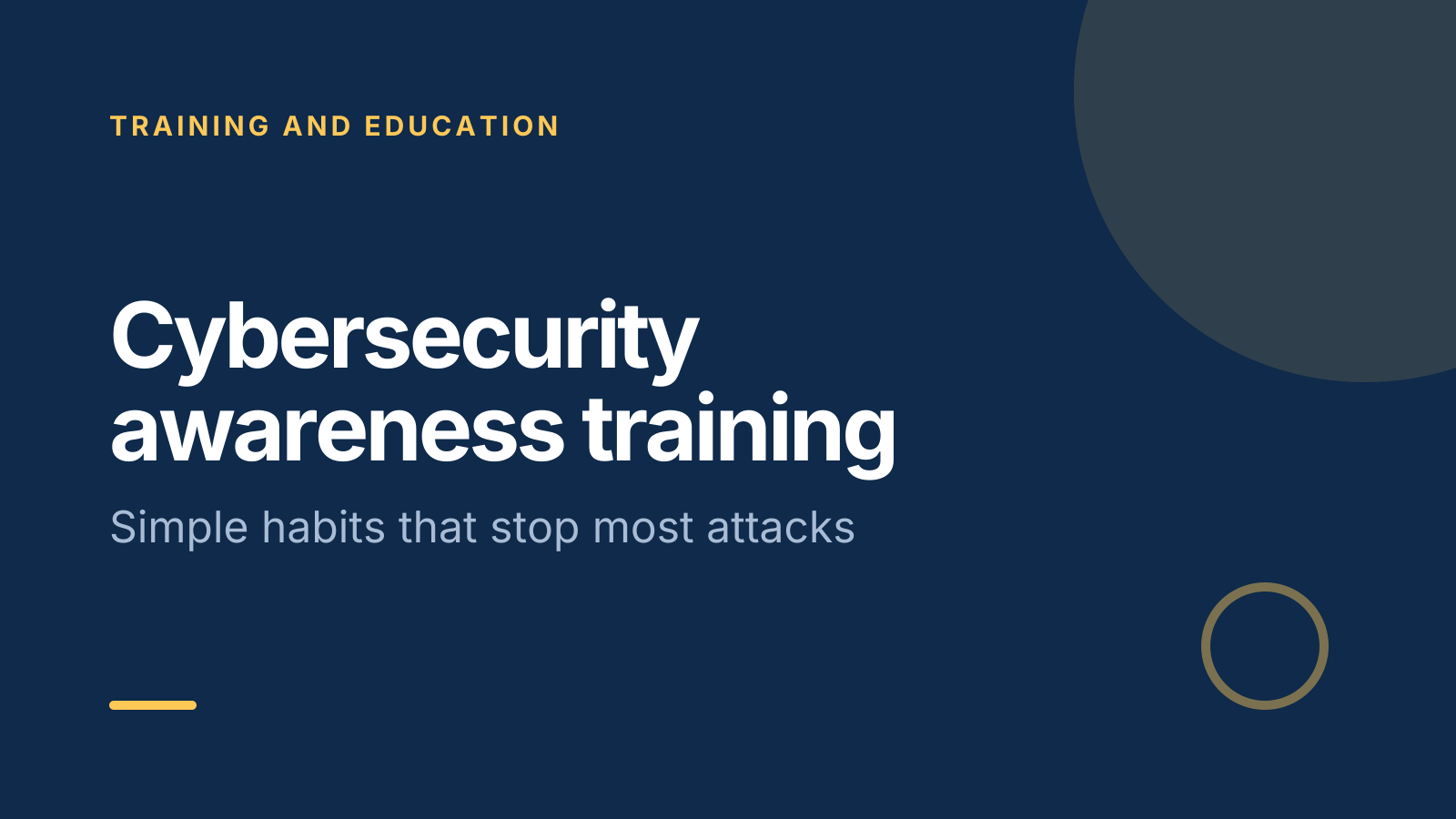
Cyber security awareness training PPT built on everyday habits
A free cybersecurity awareness training PowerPoint template: 14 slides with speaker notes, 2 polls and a quiz. Edit it in PowerPoint or Google Slides, or run it live on Zoom, Meet, Teams or in the room.
Free, no sign-up. 14 slides, about 67 minutes, speaker notes on every slide. Opens in PowerPoint, Google Slides and Keynote.
What’s inside
- 1 · Welcome
 2 · Today
- 3 · PollPollAnonymous
Have you ever clicked a link and then worried about it?
- AYes, recently
- BYes, a while ago
- CNot that I know of
- DI’d rather not say
 4 · Section
- 5 · Spot a phishing message
Spot a phishing message
- 1Check the sender addressLook at the full address, not just the name. Watch for small misspellings like rnicrosoft.com or unfamiliar domains.
- 2Notice the pressureUrgency, fear or a reward, like “your account closes today”, is the classic hook. Pressure is your signal to slow down.
- 3Check links before you clickHover over a link on a computer, or press and hold on a phone, to see where it goes. If unsure, type the address yourself.
- 6 · Passwords and sign-ins
Passwords and sign-ins
- 1Use long passphrasesThree or four random words make a password that is long, hard to guess and easier to remember than a short, complex one.
- 2One password per accountA reused password lets one breach open many doors. A password manager remembers them all so you don’t have to.
- 3Turn on multi-factorA code or app prompt blocks most attacks that rely on a stolen password. Never approve a sign-in prompt you didn’t start.
- 7 · Handle data and report fast
Handle data and report fast
- 1Verify payment changesConfirm any request to send money or change bank details by calling a number you already know, not one in the message.
- 2Lock and share with careLock your screen when you step away. Share files with named people, not “anyone with the link”.
- 3Report right awayClicked something odd? Report it at once. Speed limits the damage, and nobody is blamed for speaking up.
 8 · Discussion
- 9 · QuizQuiz
Your manager emails asking you to buy gift cards urgently. What do you do?
- ABuy them quickly
- BReply to the email to check
- CCheck by phone or in personCorrect
- DForward it to a colleague
 10 · Key takeaways
- 11 · PollPoll
Which habit will you set up this week?
- AMulti-factor on my accounts
- BA password manager
- CSaving the report contact
- DLocking my screen
 12 · Next steps
 13 · Close
Show of hands, or everyone’s answer
The first poll works with hands up. Here’s the same question in a sample room of 20, answered live. Tap an answer to join in.
Show of hands
Have you ever clicked a link and then worried about it?
About 5 hands go up, the same ones as always. You hear the loudest people, not the room.
Live in Claryoo · 0 of 20 answered · anonymous
LiveHave you ever clicked a link and then worried about it?
Twelve people admit to a click they worried about. In a show of hands, almost nobody would. Run it live, free
What the session covers
1.Spot a phishing message
Check the sender address
Look at the full address, not just the name. Watch for small misspellings like rnicrosoft.com or unfamiliar domains.
Notice the pressure
Urgency, fear or a reward, like “your account closes today”, is the classic hook. Pressure is your signal to slow down.
Check links before you click
Hover over a link on a computer, or press and hold on a phone, to see where it goes. If unsure, type the address yourself.
2.Passwords and sign-ins
Use long passphrases
Three or four random words make a password that is long, hard to guess and easier to remember than a short, complex one.
One password per account
A reused password lets one breach open many doors. A password manager remembers them all so you don’t have to.
Turn on multi-factor
A code or app prompt blocks most attacks that rely on a stolen password. Never approve a sign-in prompt you didn’t start.
3.Handle data and report fast
Verify payment changes
Confirm any request to send money or change bank details by calling a number you already know, not one in the message.
Lock and share with care
Lock your screen when you step away. Share files with named people, not “anyone with the link”.
Report right away
Clicked something odd? Report it at once. Speed limits the damage, and nobody is blamed for speaking up.
How to run it, slide by slide
About 67 minutes in all. These notes come with the PowerPoint as speaker notes, so you see them while you present.
- 1Welcome2 min
“Welcome. Most attacks don’t break in through clever code. They come through an email, a message or a phone call to one of us.”
Set a calm tone. Say this is about habits, not blame.
- 2Today2 min
“We’ll look at how attacks reach us, cover phishing, passwords and data, then practise spotting the signs.”
Mention that nobody will be asked to share their own mistakes.
- 3Poll4 min
“This one is anonymous. Have you ever clicked a link and then worried about it?”
Read the numbers without judgement. Say that a worried click is normal, and that reporting it fast is what matters.
- 4Section1 min
“Three habits: spot the phish, lock down sign-ins, and handle data with care.”
Move straight into the first lesson.
- 5Spot a phishing message10 min
“Phishing works because it looks normal and arrives when we are busy.”
Show two or three real, anonymised examples and ask the room to spot the clues in each.
- 6Passwords and sign-ins10 min
“Your password is a key. Multi-factor is a second lock that a stolen key can’t open.”
Ask who uses a password manager or multi-factor. Point people to the approved tools and setup guides.
- 7Handle data and report fast10 min
“Mistakes happen. The ones that hurt us are the ones nobody reports.”
Walk through exactly how to report, step by step, and who answers. Leave the contact on screen.
- 8Discussion10 min
“In small groups, think of a suspicious message you’ve seen. List what made it believable and what gave it away.”
After 6 minutes, ask each group for one clue. Group them into sender, pressure and links on a flipchart.
- 9Quiz4 min
“Your manager emails asking you to buy gift cards urgently. What do you do?”
- 10Key takeaways3 min
“Three things to keep: pressure means slow down, use unique passwords with multi-factor, and report fast without blame.”
Repeat the reporting contact clearly so everyone knows exactly where to go.
- 11Poll3 min
“Pick one habit you’ll set up this week.”
Read the results. If multi-factor is low, offer a short follow up showing how to turn it on.
- 12Next steps5 min
“Before you go, save the reporting contact in your phone and pick one reused password to change today.”
Give a minute to save the contact now. Share any internal guides for setting up multi-factor.
- 13Close3 min
“Thank you. Pause before you click, and if something feels off, tell us.”
Take questions. Remind people there is no such thing as a silly report.
Techniques that work in this session
From the facilitator playbook: step-by-step, with a short video. Swap one into the discussion slide.

About this cybersecurity awareness training template
Most security awareness slides are long lists of rules people forget by lunch. This free cyber security awareness training PPT focuses on the habits that stop the most common attacks. Three lessons cover spotting phishing messages, strong passwords with multi-factor sign-in, and handling data and payment requests safely, including how and why to report quickly.
It is written for IT leads, HR and team managers running a 60 to 75 minute session with non-technical staff. An anonymous opening poll shows how often people worry about a click, a quiz tests a real scam scenario, and a closing poll gets everyone to commit to one habit. Speaker notes cover what to say and how to keep it blame-free.
When to use it
- Annual security awareness refreshers for all staff
- Onboarding new starters before they get email and system access
- After a phishing attempt or incident, to rebuild good habits calmly
How to use it
- Download the PowerPoint. Every word is editable text, so add your name, your examples and your logo. For Google Slides, upload the file to Google Drive and open it with Google Slides. It also opens in Keynote.
- Read the first slide. It’s hidden when you present and lays out the session minute by minute. Each slide’s speaker notes say what to say, what to do and how long it takes.
- Run the polls your way. Hands up works in any room. To get everyone’s answer, anonymous when it matters, run the same deck live with Claryoo on a Zoom, Google Meet or Teams call, or in the room by QR code. Already edited your PowerPoint? Save it as a PDF and add it to your Claryoo deck.
More on live polls, quizzes and pick a volunteer, or spin the free wheel of names.